Auctions
- Check out our Auctions Workbook, a helpful guide for planning and setting up your auction.
- For more help with events, browse our available courses and resources.
You can use Live Events to host your next auction event and showcase items, manage bids, process transactions, and more.
Edit event details
After you create an event, your first step should be to set up the event details.
- In the menu, select Details
- Name your event
- Set the date/time
- Turn on Auction
- Add any other event features
- Select Save
Customize auction settings
Once you turn on the Auction feature for your event, we recommend you customize your auction's settings. To edit an event's auction settings:
- In your menu, select Auction
- Select the Details tab
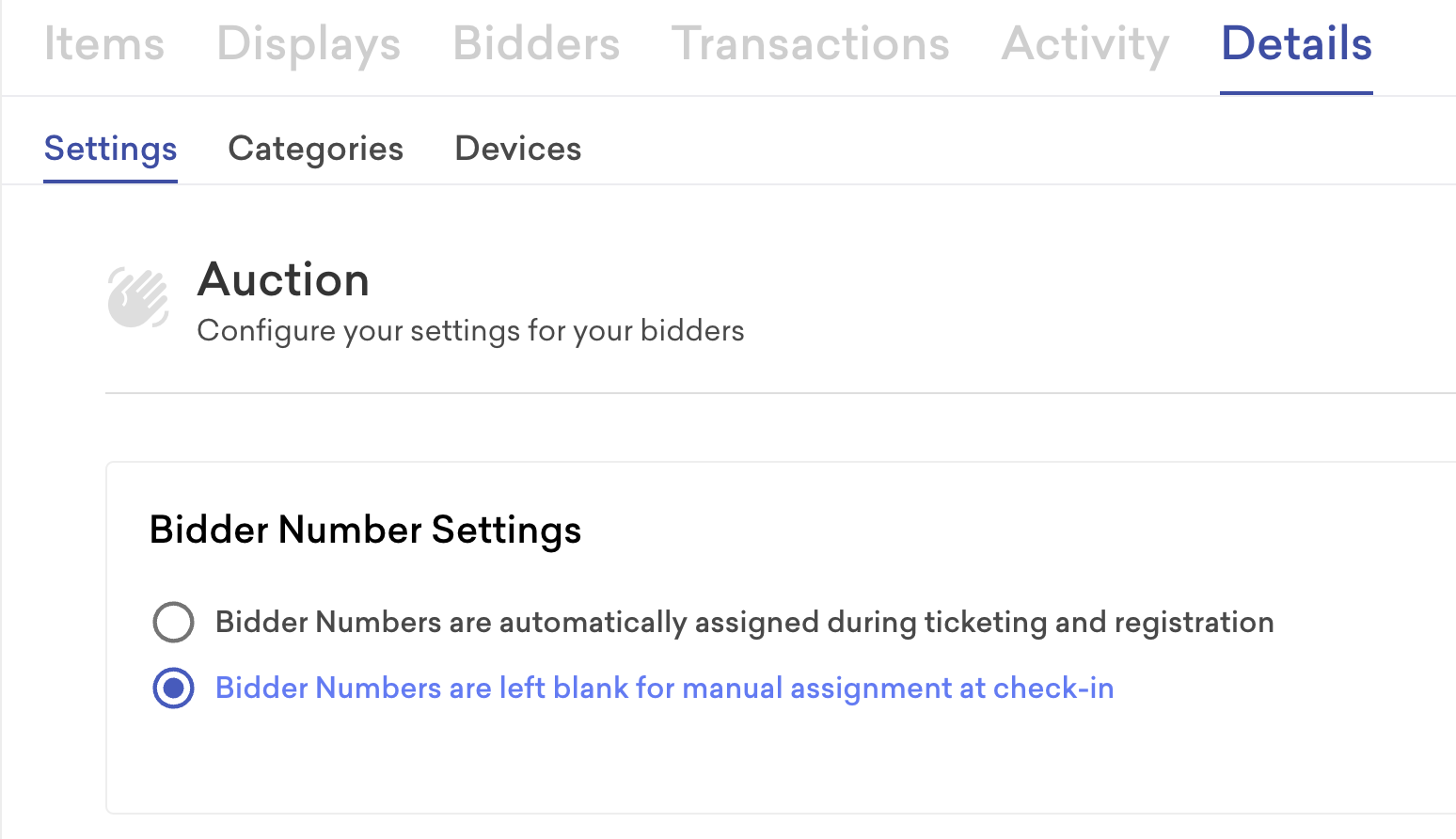
You can:
- Edit your bidder number settings
- Choose whether or not to require a credit card on file from attendees
- Choose to require billing address
- Turn on external bidders
- Change how bidders’ names or numbers display
- Create a welcome message
Note: Turning on the external bidders setting can have some impacts on your attendee data:
- If an external bidder engages with an auction item and then later registers for the event as an attendee, the attendee registration will merge and replace the external bidder record.
- The record will now have an attendee ID and ticket type listed to it.
- Any card or activity under the initial external bidder will remain.
Add items to your event
Item types
There are four item types available on Live Events.
Add items
To add items to your event:
- In your menu, select Auction
- Select the Items tab
- Select + Add
- Under Type, select the item type
- Complete the item details
- Select Save
Each item type has unique fields to complete. Learn more about Live Events items.
Silent auction items
A silent auction item allows your attendees to place bids and win items all online. You can set the starting bid, minimum raise amount, and set when bidding closes.
Tip: For silent auction items, you can turn on Max bid and Reserve price.
- Max bid allows for automatic bidding up to your attendee's set maximum amount.
- Reserve price lets you set a minimum amount your item will sell for. This allows you to set a low starting bid to encourage bidding activity while making sure your item does not sell for less than the intended amount.
How silent auction items appear for attendees
When attendees register for your event and visit the auction page, they’ll see your published auction items displayed. Once they select a silent auction item they’re interested in, they can choose to place a bid or watch the item and receive text or email updates.
To place bids on silent auction items, attendees need to have a credit card on file. If they’ve not yet added one, a window will appear to prompt them.
Live auction items
A live auction item requires an auctioneer to track bids and declare a winner in-person. You can display the items, select the winners, and let attendees complete payment.
Select the winner of an auction item
When an admin selects a winner, the item is added to that attendee’s cart where they can complete payment.
To select a winner:
- In the menu, select Auction
- Select the Items tab
- Search for the item
- Within the item card, select the Pencil icon to edit
- Hit Select a Winner
- Search for the attendee
- Select the check mark
- Enter the winning amount
- Select Send Confirmation
The attendee is notified by email that the item has been added to their cart for checkout.
Paddle raise items
A paddle raise event, also known as a direct appeal or fund-a-need, is a fundraising auction where supporters pledge amounts to an organization, typically for a specific purpose. You can track pledges and add them to attendees’ carts for payment.
Supporters can place their own pledges online, just like for silent auction items. Or, for in-person attendees, you can track commitments in real time.
We recommend that at least four staff members track pledges on physical paper. This lets you compare lists for accuracy before inputting the pledges in Live Events.
Tip: Make a copy of our recording sheet for each pledge amount and print a copy for each event staff member. For example, if you have set pledge amounts of $50 and $100 and you have four staff members, then you will need a total of eight recording sheets.
After recording the pledges input them in Live Events:
- Go to your event page
- In the header, select Onsite Tools
- Select Paddle Raise
This takes you to the Quick Add view, where you can input commitments made during your event.
- From the drop-down menu, select an item
- Enter the bidder number
- Press enter to add their commitment
This will add a commitment to the attendee’s cart where they can fulfill their pledge.
Note: Removing a pledge from the Quick Add view also removes it from the attendee's cart.
Fixed price items
If you have items to sell at your event, use Live Events to display, sell, and manage item transactions.
Add items to the cart
When attendees access your auction page, they can place bids or purchase silent auction items, paddle-raise items, or fixed-price items. You can also add these items directly to their cart for checkout or bid on their behalf.
To do so:
- Go to your event's editor
- In the header, select Onsite Tools
- Select Add to cart
- Select an attendee
- Select an item
Depending on the item type, you'll have options to buy now, submit a bid, or donate.
Remove bids and donations from a cart
You can remove bids and donations from an attendee's cart at any time by viewing their cart or the activity for a specific item. To do so:
- Go to Attendees
- Search for the attendee you want to edit
- Select the Lightning Bolt > View Cart
- Select All Activity
- Select Remove next to the timestamp
To remove the bid on a specific item:
- Go to Auction
- Search for the item
- Select Edit Item
- Select Activity
- Select Remove next to the timestamp
Note: If the Remove option is not available, you must first refund the transaction.
Additional resources
- Place bids on items
- Collect payment from attendees
- How do attendees pay for items in their cart?
- Send alerts
Auction FAQ
Can I have different types of auction items at one event?
Yes, you can add multiple different item types to one event. Learn more about auction items.
Can I change the type of an auction item?
Only Silent Auction items can be changed to another type if there is no bid activity. Once a Silent Auction item has received any bid activity, it cannot be changed to another item type.
Other auction item types cannot be changed. Instead, delete the item and create it as a different type.
Can I duplicate auction items?
Yes! On the item card, select Clone item to duplicate it.
What if an attendee forgets to pay for an item they won?
You can charge the card they have on file or send a reminder to all attendees with an unpaid balance via Alerts.
What do I do if the remove option is not available for a bid or donation in an attendee's cart?
If the remove option is unavailable, you must refund the transaction in your GoFundMe Pro account.
Can I bulk upload auction items?
Yes! Learn how to import auction items.
Can attendees pay for their items with cash or check?
Yes! To track the amount go to the Transactions tab, select View Cart, select Pay with Cash or Check and enter the amount given. We'll reflect the amount in your fundraising total and it’ll sync back to GoFundMe Pro.
Can attendees donate or bid anonymously?
Yes! Attendees can change their preferences to donate or bid anonymously when adding their payment method or in their Cart.
You can also change the anonymous status of an attendee. To do so:
- On the Attendees page, select Manage Columns and add the Anonymous column
- Select Update View
- Check or uncheck the Anonymous option for the attendee
Can I use Live Events to host a raffle?
Yes, however, you must make sure that your event complies with state law and payment processor regulations. To host a raffle on Live Events, your organization must:
- Have 501(c)(3) status
- Have the required state permits to operate raffles
- Not operate raffles for items on Stripe’s restricted businesses list
Silent auction FAQ
Are attendees notified if they are outbid?
Yes! They’ll receive an email and text update if they enter their mobile number.
What happens when bidding closes?
We will automatically notify the winner, and the item appears in their cart, where they can complete payment.
Can I bulk-edit the closing time/date?
Yes! To do so, go to the Items tab, select the Options dropdown, and select Bulk Edit Items. In the pop-up, enter a time/date in the field, select Set Date, and Save. Now, all your silent auction items will automatically close at the set time/date.
Live auction FAQ
Can I track live auction bids on Live Events?
For live auctions, you can display items, provide information, and process payments, but you cannot track bids. We recommend you designate an auctioneer during the bidding process and use Live Events to select a winner.
You may also consider a silent auction where attendees can place their own bids online.
After I select a winner, can I undo it?
Yes! Go to the Transactions tab, select the attendee's cart, select All Activity, and select Remove next to the transaction. This will remove the item from the attendee’s cart and make it available again for another winner.
Paddle raise FAQ
Can I remove commitments?
Yes, select the X next to the commitment to remove it.
Can multiple admins track commitments at the same time?
Yes, multiple admins can access the Onsite Tools on different devices and track commitments.
Right now, these won’t update in real-time, so you must refresh the page to see all the commitments added.