Live Events mobile app
Want to participate?
Sign up to join the beta program for the Live Events mobile app and M2 readers.
To use the mobile app, your organization must have a Live Events subscription, not be using Federated Single Sign-on (SSO), and you must have a compatible mobile device.
The mobile app for GoFundMe Pro Live Events lets admins efficiently manage their events through easy-to-use check-in capabilities and integrations with Stripe’s M2 and WisePOS E card readers to add a payment method on file.
Download
The mobile app is available for download on smartphones and tablets. Visit your device’s app store to download:
Note: You can only use the mobile app once accepted into the beta program. If you’ve already signed up, we’ll notify your organization when you can download the app.
Log in
Once accepted into the program and you have downloaded the app, you can log in to begin managing your events.
To access your Live Events account:
- Enter your GoFundMe Pro email address and password
- Tap Sign in
M2 card reader
As part of the mobile app beta program, you can purchase Stripe's Reader M2 through Live Events.
Here's how the M2 compares to the WisePOS E card readers:
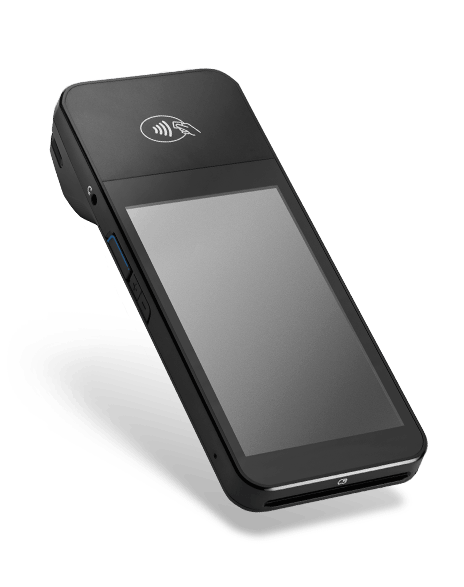 WisePOS E WisePOS E |
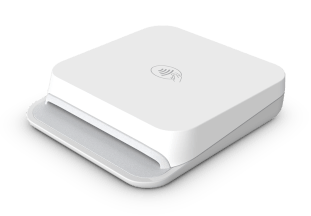 Reader M2 Reader M2 |
|
|---|---|---|
| Cost per device | $282 | $65 |
| Connectivity | WiFi | Bluetooth |
| Feature | Add payment method | Add payment method |
| Requirements | Password-protected WiFi network | Compatible smartphone or tablet with the Live Events mobile app |
Order a card reader
To purchase a reader:
- Go to your Live Events organization dashboard and select Billing
- Under Card Reader Orders, select Place Order
- Add the Reader M2 to your cart
- Enter shipping information and choose a shipping method
- Enter your card info and process order
You'll receive updates about your order directly from Stripe.
Add a card reader
You must add and connect card readers before using them to add attendees’ payment methods. The mobile app is compatible with Stripe’s M2 and WisePOS E card readers purchased through Live Events.
Before you start, ensure your card reader is fully charged, and you’ve turned on Bluetooth in your phone or tablet settings.
Note: If you need to add a WisePOS card reader, make sure you’re connected to a password-protected WiFi network. Learn more about the WisePOS E network requirements.
To add a card reader to your event:
- In the app, tap on the event
- Tap the Settings icon in the top right corner
- Tap Add now
- Select a location and the device
Note: Locations help ensure your reader has the correct regional settings. Visit your event on a desktop to add device locations.
- Tap Scan for available devices.
Once recognized, the app will display a confirmation message.
Connect to the card reader
Once you’ve registered your device with the event, you can connect to it to start adding payment methods.
To connect your mobile device to the card reader:
- On the Manage Card Readers screen, find your card reader
- Tap the three-dot menu and select Connect to device
When the M2 is connected:
- The reader’s lights will flash four times.
- The first light will flash every 5 seconds.
- In the app, a star will appear next to the reader's name in the app.
Once connected, you can easily collect card information for attendees during check-in or after the event.
Need help connecting?
If your device isn’t connecting to the M2 reader, try these quick checks:
- Make sure Bluetooth is turned on
- Confirm the reader is powered on and fully charged
- Check that you’re using the latest version of the mobile app
Still not working? View our troubleshooting steps.
Device updates
When connecting to your M2 reader, you might be prompted to update. This is normal as Stripe regularly updates the reader's software. Wait for the update to complete, then connect to the card reader.
Check-in with the mobile app
We recommend adding payment methods right at check-in, where you can also edit attendee details and send the attendee a link to the event’s auction page.
To check-in attendees:
- In the app, select an event
- Search for a specific attendee or filter attendees based on check-in status and ticket type
QR code check-in
Tap Scan Code on the Attendees page to check in an attendee via QR code.
You’ll need to grant the app permission to use your device’s camera. Once allowed, you can scan the attendee’s QR code to check them in.
Note: You can send QR codes to attendees via the event’s welcome message. Learn more about sending messages.
Manual check-in
Tap Check in next to an attendee's name to check them in manually.
A success notification will appear with information about the attendees, such as their seating assignment, bidder number, and ticket type.
Add payment method
To add a payment method when checking in an attendee:
- Tap Add Payment Method or select View Payment Methods in the attendee's profile
- Tap Add from card reader or Manually add card
Add from card reader
To add a card via the card reader:
- Scroll down and tap Tap, swipe, or insert card
- Present the credit card using any of the three methods: tap, swipe, or insert.
When the card is accepted:
- You'll hear a beep.
- All the lights will turn on.
- For security reasons, the app will display asterisks in the Card Number field
Add a phone number, opt the attendee into auction notifications, and tap Save.
Manually add card
If you don’t have a card reader or are having trouble connecting, tap Manually add card to enter the card details.
Edit attendees
To edit attendee details in the mobile app:
- Go to the event
- Tap on the attendee's name or select View Profile
Then, you can edit their name, email, bidder number, phone number, notes, and custom question responses, plus you can opt them in to receive texts.
Device requirements
To use the mobile app, your device must be either an:
- Apple device running iOS 14.0 or higher (released 2020)
- Android device running versions 8.0 or higher (released 2017). Your Android device must also be NFC-compatible. Find out if your device supports NFC.
Have feedback?
Let us know! Fill out this form to report issues, make requests, or share positive notes.