Reader M2 with Live Events mobile app
Want to participate?
Sign up to join the beta program for the Live Events mobile app and M2 readers.
To use the mobile app, your organization must not be using Federated Single Sign-on (SSO), and you must have a compatible mobile device.
As part of the mobile app beta program, you can purchase Stripe's Reader M2 through GoFundMe Pro Live Events.
Here's how the M2 compares to the WisePOS E card readers:
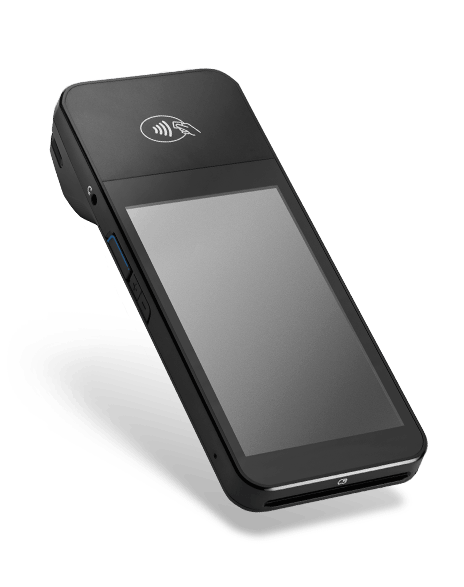 WisePOS E WisePOS E |
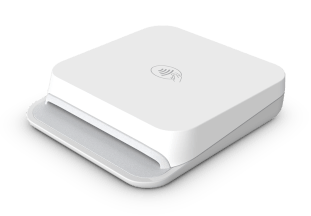 Reader M2 Reader M2 |
|
|---|---|---|
| Cost per device | $282 | $65 |
| Connectivity | WiFi | Bluetooth |
| Feature | Add payment method | Add payment method |
| Requirements | Password-protected WiFi network | Compatible smartphone or tablet with the Live Events mobile app |
Order a card reader
To purchase a reader:
- Go to your Live Events organization dashboard and select Billing
- Under Card Reader Orders, select Place Order
- Add the Reader M2 to your cart
- Enter shipping information and choose a shipping method
- Enter your card info and process order
You'll receive updates about your order directly from Stripe.
Set up the card reader
Once you receive the Reader M2, you’ll want to set it up with your event and test it to ensure everything works properly.
To start, charge it fully using the provided cable.
Each charge should provide more than 20 hours of active use.
Turn on the device by pressing the button on the left-hand side. The lights that appear indicate it's charge level and four lights means it is fully charged.
Connect the card reader to your event
Before your event, be sure to connect your reader. The first time you connect, you may need to update the device. Updates are required and can take up to 15 minutes to complete.
Learn how to connect the reader to your event.
Troubleshooting
If your Reader M2 isn’t connecting to your mobile device, try these basic steps:
Check your mobile device’s settings
- Check whether your mobile device has a strong Wi-Fi or data connection. While the card reader does not require an internet connection, the app still requires an internet connection to use.
- Ensure both Bluetooth and Location settings are turned on. Check that your device is not currently connected to another device.
- Ensure the GoFundMe Pro Live Events app has permission to use your device’s Bluetooth and Location
Check the card reader's battery
- Press the power button on the side of the reader. If no lights appear, the reader may need to be charged or turned on.
- View Stripe's guide for the battery status on the Reader M2
Note: If the two outside green dots are flashing, the card reader is in "tampered mode" and will need to be replaced.
Make sure you're using the latest version of the mobile app
We’re always improving the mobile app, so staying up to date helps avoid connection issues.
To check your app version:
- Open the app and go to Events
- Tap the profile icon
- Scroll past the Log out button to find your version number
You should be using version 0.6.2 or later.
If you're still having connection issues, you will need to take additional steps in the mobile app settings.
Advanced troubleshooting
If the basic steps didn't resolve your connection issues, there are advanced steps to make sure the reader is connected correctly. In the app's settings, your reader will be successfully connected if the serial number is shown with a star next to it. To check:
- Select your event, then tap the Settings icon
- Under Manage Card Readers, there are three possibilities:
- If no serial number is shown tap Add now to connect your reader
- If there is a serial number without a star, make sure it matches the serial number on your physical M2 reader. If it does, tap the three-dot menu and select Connect to device.
- If there is already a serial number with a star and it matches the number on your M2 reader, tap the three-dot menu and select Disconnect from device. Then, select Remove device. Once removed, follow the steps again to connect your reader.
We recommend trying these additional steps if you're still having issues after confirming the correct M2 reader is connected:
- Close the mobile app completely, then reopen and follow the steps to disconnect and reconnect the device.
- If this does not work, uninstall the app completely, then reinstall the app. Once reinstalled, repeat the steps to connect your reader.
- If the reconnection doesn't work, uninstall and reinstall the app again. Before connecting the M2 reader, use a pin to press the Reset button next to the charge input on the card reader. Then, repeat the steps to connect your reader.